A New Starting Point for Further Builds
Open Claude Code in VS Code and Run Your First Command


On the cover: Jan Steen's Dissolute Household (1663), paired with Proust on the impossibility of arriving anywhere final. Picked because every PM has a Steen household of half-installed AI tools, and this chapter is the start that doesn't compound the mess.
"There can be no peace of mind in love, since what one has obtained is never anything but a new starting point for further desires." Marcel Proust, Within a Budding Grove

The Dutch built a phrase around the Steen above. Een huishouden van Jan Steen, a Jan Steen household, is still what Dutch parents call a kid's room that has gone too long without supervision. Look at why. Steen sits in the middle of his own painting with a sly smirk, his fingers entwined with the maid's hand while she pours his wife another generous glass of wine. The wife reclines and reaches for it anyway. Broken glass lies at their feet. A cat works through what's left on the table. Two boys romp on a sleeping woman in the corner, untroubled by the noise. Suspended in a basket directly overhead, the household carries its own warning: a beggar's crutch, a pair of plague clappers, the jack of spades. Steen's joke, four hundred years old, is that the people in the painting can see the warnings hanging above their heads and have decided to deal with that tomorrow.
Every PM reading this chapter has a Steen household of AI tools. Things tried once and half installed. Tabs opened in good faith and never returned to. Subscriptions paid for and forgotten. Each new tool starts at a small handicap because of the residue of every previous one, and the impulse to start fresh dies a little each time.
Proust named the feeling. "What one has obtained is never anything but a new starting point for further desires." This chapter is the start you don't put off. Ten minutes from now, Claude Code is running inside VS Code on your machine, and the first file it generated for you is sitting in your project tree. You will have spent zero time on the command line getting there.
No coding background required. No terminal. No shortcuts. Let's start.
In This Chapter
- 1.1 What Claude Code Is (and What It Is Not)
- 1.2 Install: VS Code + the Claude Code Extension
- 1.3 Your First Session
- 1.4 The Chat Panel: What You're Looking At
- 1.5 Permissions and Billing
- 1.6 Troubleshooting
- 1.7 Summary + Quick Reference
1.1 What Claude Code Is (and What It Is Not)
You got the high-level in the introduction: Claude Code is an AI agent that lives inside your editor, reads your project files, and executes tasks end-to-end. Before you install anything, it's worth locking in one mental model for the rest of the chapter. The model is this: Claude Code is a contractor working inside your project folder. You brief them in plain English in a chat panel. They go off, do the work, hit errors, figure them out, and keep going until they're done.
That's the whole game. Claude Code is not a chatbot, not autocomplete, and not a web app you visit. When Claude writes code, the code appears in your folder. When Claude runs a command, the command actually runs against your system. When Claude hits an error, it reads the error and fixes it without asking you to copy and paste the trace.
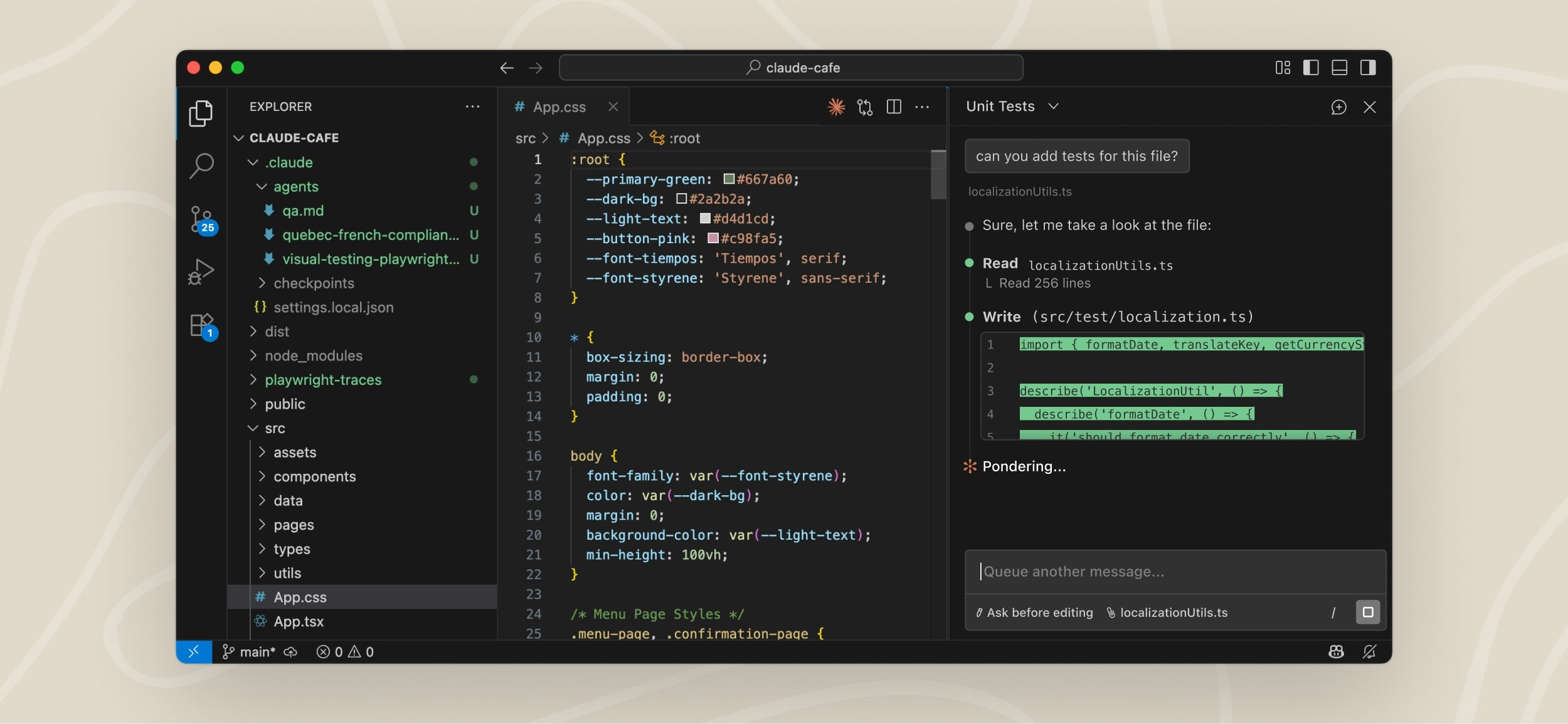
The chat panel sits docked in your VS Code sidebar. You type what you want; you watch Claude work; files appear and change in your file tree as it goes. That is the entire loop, and the rest of this chapter is just about getting you running so you can feel it for yourself.
Deeper read: Claude Code for Product Managers: Complete Setup Guide + Real PM Workflows (2026), Mohit Aggarwal (Medium)
A PM walks through his actual setup and the prototypes he built with it. Read once now to see what's possible after this chapter.
1.2 Install: VS Code + the Claude Code Extension
Two downloads, roughly five minutes total. There's no terminal step in either of them.
Step 1: Install VS Code
If you already have VS Code installed, skip this step. Otherwise download it from code.visualstudio.com. It's free, it runs on Mac, Windows, and Linux, and the installer is a single click. There's nothing to configure during install.
Step 2: Install the Claude Code Extension
Open VS Code. On the left sidebar, click the Extensions icon, it looks like four squares with one floating out of place, usually near the top. In the search bar at the top of the panel that opens, type Claude Code. The first result should be the one published by Anthropic. Click it, then click Install. The whole step takes about thirty seconds.
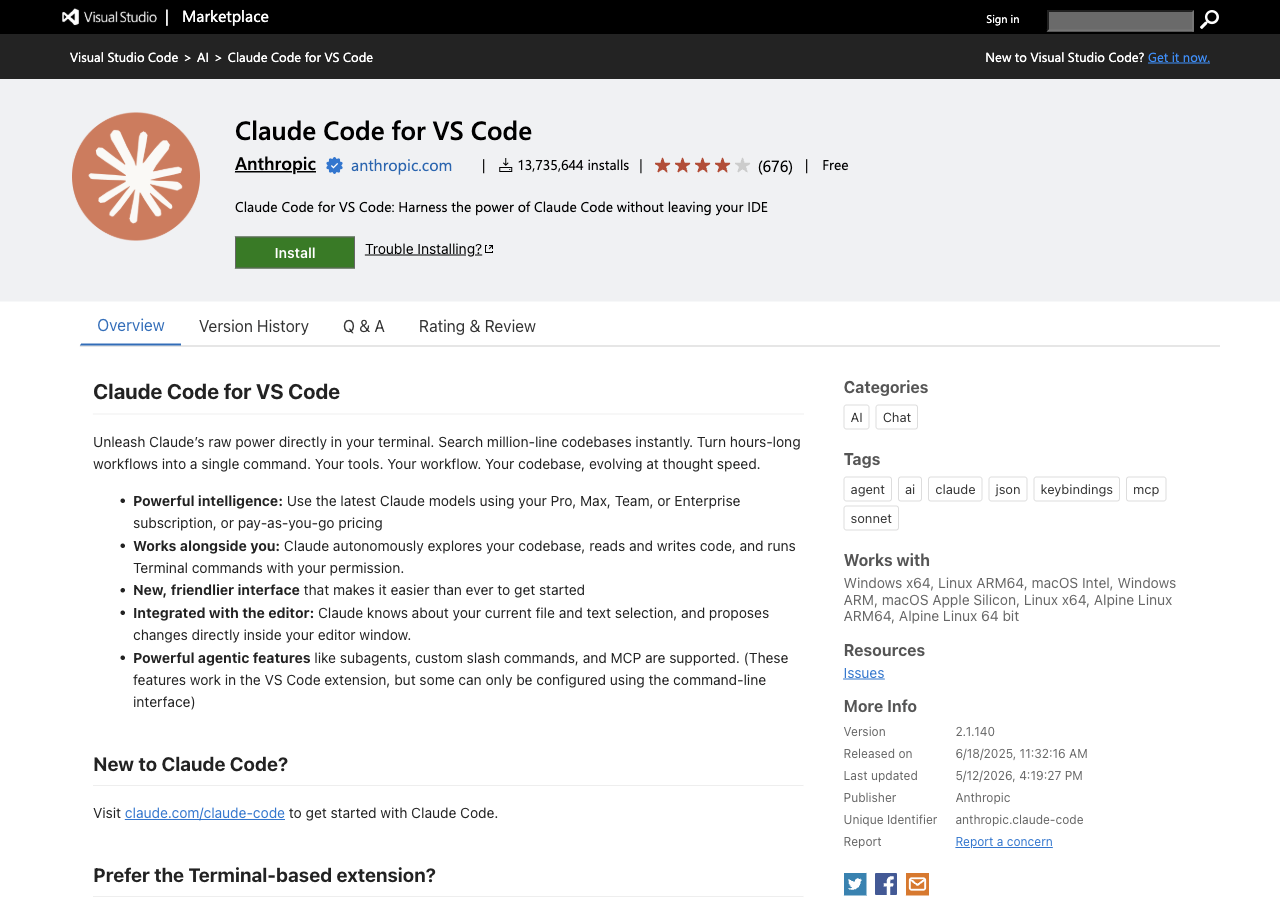
Step 3: Authenticate
Once the extension is installed, a new Claude Code icon appears in the VS Code sidebar. Click it. The first time you do, the extension prompts you to log in, and your browser opens to an Anthropic page. Log in with your Anthropic account, or create one at claude.ai if you don't have one yet, account creation takes about a minute.
Click Approve in the browser tab. You're redirected back to VS Code, authenticated, and ready to go.
Step 4: Open a Project Folder
Claude Code reads the folder VS Code has open, so the last setup step is to actually open one. Go to File → Open Folder. Pick an existing folder if you have one in mind, or create a new one, my-first-project is fine, and select that. VS Code opens the folder, and the Claude Code chat panel slides into the right side of your editor. Type in it. You're in.
Community signal, r/ClaudeAI: Claude Code creator Boris shares his setup with 13 detailed steps
Boris is the creator of Claude Code at Anthropic. Skim his setup once you're installed. Closest thing to a best-practices cheat sheet from the source.
1.3 Your First Session
At this point you have VS Code open with a project folder, and the Claude Code chat panel parked on the right. The fastest way to feel what's different about Claude Code is to type something simple and watch what happens. In the chat panel, type:
Hello. What can you help me with in this folder?
Claude Code scans your project and tells you what it sees. If the folder is empty, it asks what you want to build. If the folder has existing files, it describes them. Either way, the response is grounded in the actual contents of your machine, not in some generic answer about what AI tools can do.
Your First Real Task
Now give Claude something concrete:
Create a file called hello.md with a brief description of what
Claude Code is in plain English, in 3 bullet points.
Claude Code will acknowledge the task, create hello.md in your folder, write the three bullets, and tell you what it did. Look at VS Code's file tree on the left, the file is there. Click it to read what Claude wrote. You just executed code without writing a single line, and the result is a real file you can edit, rename, or commit.
Code companion (optional, but recommended for everything after this chapter): clone the course repo and try the same exercise inside a real project structure rather than an empty folder.
In VS Code, open the command palette (Cmd+Shift+P on Mac, Ctrl+Shift+P on Windows). Type Git: Clone and pick the option that appears. Paste:
https://github.com/hamzafarooq/claude-code-starter.git
Pick a destination on your machine. When VS Code asks whether to open the cloned repo, click "Open." You're now inside hamzafarooq/claude-code-starter, which ships with a working CLAUDE.md, a primer, and four modules of apps and skills. Read primer.md first for navigation, then come back here.
The Core Behavior
Conversations in Claude Code feel like chat. You message it, it responds and acts, you follow up. The only thing that's different from regular chat is that the actions are real: files actually get created, commands actually run, errors actually get caught and fixed.
There are two control moves to learn now and you'll pick up the rest naturally as you work:
/clearwipes the current conversation and starts fresh. Use it when you switch to a new task, old context can confuse Claude on the new one.- Click the X on Claude's working message to interrupt mid-task if Claude is heading somewhere wrong.
That's the entire user manual for the chat panel for now.
1.4 The Chat Panel: What You're Looking At
The Claude Code panel is intentionally minimal: a stream of chat messages flowing top to bottom, and an input box at the bottom where you type. Your messages line up on the right; Claude's responses line up on the left. There's no menu of options, no settings clutter, no AI-tool flourish.
When Claude reads a file or runs a command, the action shows up as a collapsed box inline with the chat, what Anthropic calls a "tool execution box." Click any box to expand it and see the full input and output of that action. Most of the time you don't need to. The boxes are there for when something looks wrong and you want to inspect what Claude actually saw.
Your project files stay visible in the file tree on the left of VS Code. As Claude works, files appear, change, and sometimes disappear in real time. You can click any of them to view or edit while the chat keeps going. The chat panel and the file tree are two windows into the same project, not two separate workspaces.
Slash Commands
Anything you type that starts with / is a Claude Code built-in command rather than a normal message. There are a handful worth knowing from day one:
| Command | What it does |
|---|---|
/init | Scans your project and generates a starter CLAUDE.md |
/help | Lists all available commands |
/clear | Clears conversation context. Use when starting a new task |
/plan | Claude shows you its plan before it executes |
/config | Opens settings (theme, model, defaults) |
/cost | Current session token count and estimated cost |
1.5 Permissions and Billing
Two things tend to trip people up in their first week with Claude Code: what Claude Code is allowed to do on their machine, and what it costs to run. Both are simpler than they look.
Permissions
Claude Code operates on a trust-but-verify model. It reads files and writes new code automatically, because those are reversible actions inside the folder you opened. For anything higher-impact, it stops and asks for confirmation before doing the thing.
By default, Claude Code asks permission before:
- Running shell commands
- Deleting files
- Making network requests
- Modifying files outside your project folder
For most PM work, that default is exactly what you want. You'll see permission prompts maybe a few times a session, and almost always when something interesting is about to happen.
The golden rule: if Claude is about to do something that feels wrong, click X to interrupt and give a more specific instruction. You're always in control of the loop, even when it's running fast.
Billing
Claude Code runs against your Anthropic account credits. There are three ways to pay for those credits, and most students end up on one of the first two.
Claude Pro ($20/month)
- Generous monthly usage limit for Claude Code
- Covers most casual to moderate use
- The plan most students in our Maven cohorts use
Claude Max ($100/month)
- For heavy daily use, multiple long sessions, full applications
- No usage caps
- Worth it if you're using Claude Code several hours a day
Pay-as-you-go (API)
- Set up an API key at console.anthropic.com
- You pay per token (roughly per word) consumed
- Good for starting small and cheap
- Required if you eventually deploy Claude Code-powered features to production
Typical costs. A one-hour working session, landing page, PRD, user stories, typically costs between $0.20 and $2.00 in raw usage. On Pro, that's covered by the subscription. On API credits, it's cheap for what you get back. You can check your current session's spend at any time by typing /cost in the chat panel.
Which Model?
Claude Code can be backed by different Claude models. The default is Claude Sonnet, which balances speed and quality well enough that most students never change it.
- Sonnet is the default and the right choice for everyday work.
- Opus is the maximum-capability model, slower and more expensive, but the one you reach for when a problem is genuinely hard.
- Haiku is the fastest and cheapest of the three; useful for simple, throwaway tasks.
For this book, Sonnet is the only model you'll need to think about. You don't need to change anything.
1.6 Troubleshooting
Installation usually works on the first try. The handful of issues that do come up tend to be the same handful for everyone, so here's the cheat sheet.
Claude Code extension doesn't appear in VS Code
What's happening: The extension didn't install correctly, or VS Code hasn't picked it up yet.
Fix: Open VS Code Extensions (Cmd+Shift+X on Mac, Ctrl+Shift+X on Windows). Search Claude Code by Anthropic. Click Install. If the icon still doesn't appear in the sidebar, restart VS Code, the extension activates on launch.
Authentication loop
What's happening: The browser opened for login but something interrupted the handoff back to VS Code. The auth flow is left half-finished.
Fix: Close the browser tab. In VS Code, open the command palette and run Claude Code: Sign Out. Then click the Claude Code icon again to retry the login flow from a clean state.
Claude is not reading my project files
What's happening: You don't have a folder open in VS Code, so Claude Code has no project context to read.
Fix: File → Open Folder, and pick your project folder. Claude Code only reads the folder VS Code has open. No open folder means no project context.
"Claude doesn't remember what we talked about last session"
What's happening: This is expected behavior, not a bug.
Claude Code doesn't persist memory between sessions automatically. Every new session starts fresh. The way to carry context forward is the CLAUDE.md file, which you'll write in Chapter 2. That file is read automatically at the start of every session, so the things you put in it are the things Claude remembers.
The chat panel is sluggish or freezes
What's happening: Too many large files in context, or a long-running task that hasn't returned.
Fix: Run /clear to reset the conversation and drop the heavy context. If a specific task is stuck, click the X on the working message to interrupt it. Restart VS Code as a last resort.
Still stuck? Full docs at code.claude.com/docs/en/troubleshoot-install. The course Slack is also good, someone has probably already hit the same issue and posted the fix.
1.7 Summary + Quick Reference
What You Did in This Chapter
In about thirty minutes, you went from a fresh laptop to a running Claude Code environment with your first generated file already in your project tree. Concretely:
- Learned what Claude Code is and why it eliminates the copy-paste handoff between you and a model
- Installed VS Code and the Claude Code extension
- Authenticated with your Anthropic account
- Opened a folder and ran your first Claude Code session
- Got familiar with the chat panel, prompt input, tool execution boxes, slash commands
- Set realistic expectations on permissions and billing
- Picked up fixes for the most common install problems
You now have a running Claude Code environment, and that's the only prerequisite for everything that follows in this book.
Quick Reference Card
Install path
- Download VS Code from code.visualstudio.com
- In VS Code: Extensions → search "Claude Code" by Anthropic → Install
- Click the Claude Code icon in the sidebar → log in
- File → Open Folder → pick or create your project folder
Starting a session
| Action | How |
|---|---|
| Open chat panel | Click Claude Code icon in VS Code sidebar |
| Send message | Type in input box, press Enter |
| Interrupt Claude | Click X on the working message |
| See history | Scroll up in chat panel |
| Expand tool box | Click the collapsed action |
Essential slash commands
| Command | What it does |
|---|---|
/init | Scans project, creates CLAUDE.md starter |
/help | Lists all commands |
/clear | Clears context when switching tasks |
/plan | Shows Claude's plan before it executes |
/config | Settings: theme, model, defaults |
/cost | Current session token count and estimated cost |
Most common fixes
| Problem | Fix |
|---|---|
| Claude Code icon missing in sidebar | Search "Claude Code" in Extensions, Install, restart VS Code |
| Auth loop | Command palette → Claude Code: Sign Out, then click icon again |
| No project context | File → Open Folder before chatting |
| Chat panel sluggish | Run /clear to reset context |
| Claude forgets context | Write a CLAUDE.md file (Chapter 2) |
★ Build It Now
Exercise 1.1: Confirm Your Setup Works
This is the smallest possible end-to-end test. It proves that everything is wired correctly before you move on to Chapter 2.
- Open VS Code
- File → Open Folder → pick or create a folder
- Click the Claude Code icon in the sidebar
- Type:
Create a file called setup-test.txt with "Claude Code is running" and today's date - Watch the chat panel execute the task
- Check the file tree on the left. The file is there.
If the file appears with the right content, you're set up correctly and ready for Chapter 2.
Exercise 1.2: Explore the Commands
Inside the chat panel, run each of these in order so you've seen what they do at least once:
/help
Scan the list of commands. You don't need to understand all of them yet. Just see what's available.
/cost
You'll see $0.00 or a small number. That's what the session has cost you so far.
/clear
The conversation resets. You're ready for a fresh task.
"Every PM who goes through our course says the same thing about Chapter 1: 'I was nervous about the editor and then it was just... fine.' It always is. The chat panel is just a text interface. You've been using text interfaces your whole career." Hamza Farooq
What's Next
Today: install VS Code, install the Claude Code extension, open the chat panel, and confirm Claude responds when you ask it something simple. That alone is the chapter, and it earns you the rest of the book.
Tomorrow: clone the course repo and run your first real prompt inside an actual project. The exercise is small. The shift in how you think about your job is not.
More:
- Code companion: hamzafarooq/claude-code-starter, see primer.md and README.md
- The daily operating system: Claude Code 2026: The Daily Operating System Top Developers Actually Use, Rick Hightower (Medium)
- PM workflows: Claude Code for Product Managers: Complete Setup Guide + Real PM Workflows (2026), Mohit Aggarwal (Medium)
- Enroll on Maven: Forward Deployed Engineering Bootcamp
Sources used in this chapter:
- Claude Code Quickstart
- Claude Code Troubleshoot Installation
- Claude Code Overview
- Claude.ai Pricing
- Video: Every Level of Claude Code Explained in 21 Minutes, Nate Herk
- Medium: Claude Code for Product Managers, Mohit Aggarwal
- Medium: Claude Code 2026: The Daily Operating System, Rick Hightower
- Reddit: Boris's 13-step setup (r/ClaudeAI)
- Repo: hamzafarooq/claude-code-starter